

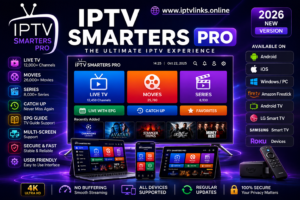
Welcome to Your Site iptvlinks.Online. Today, we give you an easy way to set up IPTV Smarters Pro.
Download The App from Apple & Google Play
Everything You Need to Know About IPTV Smarters Pro – Setup, Fixes, and Device Guide
IPTV Smarters Pro has become one of the most popular media players for streaming live TV, movies, and series. Unlike apps that come with content built-in, IPTV Smarters Pro is a player – you bring your own IPTV subscription, and the app organizes and streams everything in a beautiful, user-friendly interface. If you’re a beginner looking to cut the cord and take control of your entertainment, this guide covers everything you need: installation steps for every device, common problems and fixes, download details, and how the app works across all platforms.
What Is IPTV Smarters Pro?
IPTV Smarters Pro is a professional-grade media player designed to work with IPTV services. It supports connecting to your provider via Xtream Codes API (username, password, and server URL) or an M3U playlist link. The app itself does not host or provide any channels, movies, or shows – you must have your own subscription from an IPTV provider to use it.
Key Features at a Glance
-
Live TV, Movies, and Series – all your content organized in one place.
-
EPG (Electronic Program Guide) – see what’s on now and what’s coming up.
-
Favorites System – save channels you watch most for quick access.
-
Parental Controls – restrict access to mature content with a PIN.
-
Multi-Screen Support – watch on multiple devices with the same subscription.
-
External Player Support – use VLC, MX Player, or other players if needed.
How to Install IPTV Smarters Pro – Step-by-Step for Every Device
What You Need Before You Start
Before installing, make sure you have:
-
A stable internet connection (at least 10 Mbps for HD, 25 Mbps for 4K)
-
An active IPTV subscription – you’ll need either:
-
Xtream Codes credentials (Username, Password, and Server URL), or
-
An M3U playlist URL
-
-
Your device ready – the app is available for almost every platform
How to Install on Android (Phones, Tablets, Android TV)
-
Open the Google Play Store on your device.
-
Search for IPTV Smarters Pro.
-
Tap Install and wait for the download to complete.
-
Open the app once installed.
-
Choose your login method – Login with Xtream Codes API or Login with M3U URL.
-
Enter your credentials and tap Add User.
Note: If the app isn’t available in your region’s Play Store, you can download the APK directly from the official IPTV Smarters website and install it manually.
How to Install on iPhone & iPad (iOS)
-
Open the App Store on your iPhone or iPad.
-
Search for Smarters Player Lite or IPTV Smarters Pro (the name may vary by region).
-
Tap Get to download the app (size is approximately 49-73 MB depending on the version).
-
Open the app and log in using your Xtream Codes or M3U details.
-
Start watching your content.
Compatibility: Requires iOS 16.0 or later for most versions. Some newer versions require iOS 17.6 or 18.1, so check the App Store listing for your specific device.
How to Install on Smart TV (Samsung, LG, Android TV)
For Android TV / Google TV:
-
Open the Google Play Store on your TV.
-
Search for IPTV Smarters Pro.
-
Install and launch the app.
-
Log in with your provider credentials.
For Samsung Smart TV:
-
Press the Home button on your remote.
-
Navigate to Search and type IPTV Smarters Pro.
-
Download and install the app.
-
Open and log in using your Username, Password, and Portal URL.
For LG Smart TV (webOS):
-
Press the Home button on your remote.
-
Open the LG Content Store.
-
Search for IPTV Smarters Pro Player.
-
Install the app (size is only about 3.3 MB for the LG version).
-
Open the app and log in with your subscription details.
Important: The Samsung and LG versions do not support all premium features like Master Search or External EPG, but core streaming works well.
How to Install on Amazon Firestick / Fire TV
-
From the Firestick home screen, go to Search.
-
Type IPTV Smarters Pro.
-
Select the app from the search results.
-
Click Download or Get.
-
Once installed, open the app and enter your login details.
Alternative method: You can also sideload the app using the Downloader app and the official APK from the IPTV Smarters website.
How to Install on Windows PC
Since IPTV Smarters Pro is originally an Android app, you’ll need an Android emulator like BlueStacks or NoxPlayer to run it on Windows.
Steps:
-
Download and install BlueStacks from the official website.
-
Open BlueStacks and sign in with your Google account.
-
In the BlueStacks home screen, open the Google Play Store.
-
Search for IPTV Smarters Pro and install it.
-
Open the app from within BlueStacks and log in with your subscription details.
System requirements for Windows:
-
Windows 7, 8, 10, or 11
-
Intel or AMD processor
-
At least 4GB RAM (8GB recommended)
-
5GB free storage space
-
Stable broadband internet connection.
How IPTV Smarters Pro Works on All Devices
The app works consistently across all supported devices with the same core functionality:
| Device Type | Installation Source | Login Method | Special Notes |
|---|---|---|---|
| Android Phone/Tablet | Google Play Store or APK | Xtream Codes / M3U | Fully featured |
| iPhone / iPad | App Store | Xtream Codes / M3U | May be called “Smarters Player Lite” |
| Android TV / Google TV | Google Play Store | Xtream Codes / M3U | Remote-friendly interface |
| Samsung Smart TV | Samsung App Store | Xtream Codes / M3U | Limited premium features |
| LG Smart TV | LG Content Store | Xtream Codes / M3U | 3.3 MB, basic player |
| Amazon Firestick | Amazon Appstore | Xtream Codes / M3U | Popular choice, runs well |
| Windows PC | Via BlueStacks emulator | Xtream Codes / M3U | Requires emulator |
Once logged in, the app loads your provider’s channel list, movies, and series. You can browse by category, search for specific content, mark favorites, and access the EPG (TV guide) if your provider supports it.
Download Size and App Details
| Platform | App Size | Requirements |
|---|---|---|
| Android | Varies by version | Varies by device |
| iOS (iPhone/iPad) | 49-73 MB | iOS 16.0+ or 18.1+ depending on version |
| LG Smart TV | 3.3 MB | webOS 4.0+ |
| Samsung Smart TV | Varies | Tizen OS |
Pricing: The app is free to download but includes in-app purchases to remove ads or unlock premium features. Typical pricing is around $4.99/month, $14.99/6 months, or $29.99-$49.99 for lifetime access.
Common Problems and How to Fix Them
1. Buffering or Freezing Streams
Symptoms: Constant loading circles, pixelation, or video stopping and starting.
Solutions:
-
Check your internet speed – you need at least 10 Mbps for HD, 25 Mbps for 4K.
-
Enable Hardware Decoding – go to Settings > Player Settings and turn on Hardware Decoder to offload video processing to your device’s GPU.
-
Switch from Wi-Fi to Ethernet – a wired connection is much more stable, especially for Smart TVs and Firesticks with an Ethernet adapter.
-
Clear the app cache – on Firestick/Android, go to Settings > Apps > IPTV Smarters Pro > Clear Cache.
-
Use a VPN – if your ISP is throttling streaming traffic, a VPN can prevent this.
-
Adjust buffer size – in Settings > Player, increase buffer size to 5-10 seconds.
2. “Login Not Working” or “Xtream Codes API Not Valid”
Symptoms: Error when entering credentials.
Solutions:
-
Recheck credentials – Username and password are case-sensitive.
-
Confirm subscription is active – trials often expire after 24 hours.
-
Test with VLC – paste your M3U URL into VLC Media Player. If it fails, the issue is the provider’s server, not the app.
-
Check special characters – if your username or password contains @, #, or /, they can break the M3U format – ask your provider for Xtream Codes instead.
3. Channels Show “Error Loading Stream”
Symptoms: Channels appear in the list but won’t play.
Solutions:
-
Switch the player engine – go to Settings > Player > Player Settings and change from “System Player” to “ExoPlayer” or vice versa.
-
Test a different channel – if only one channel fails, that specific stream is down.
-
Lower video quality – if HD channels fail but SD works, your internet speed is the issue.
4. App Crashes When Opening Playlist
Symptoms: App closes when loading channels.
Solutions:
-
Clear cache – Settings > Apps > IPTV Smarters Pro > Clear Cache.
-
Use Xtream Codes instead of M3U – Xtream Codes loads progressively and uses less memory.
-
Force stop and restart – on Firestick, go to Settings > Applications > Manage Installed Applications > Force Stop.
5. EPG (TV Guide) Not Showing
Symptoms: No schedule information for channels.
Solutions:
-
Go to Settings > EPG Settings and enter your provider’s XMLTV EPG URL.
-
Set EPG refresh time to 12 hours or 24 hours.
-
Tap Reload EPG to force a refresh.
-
Test the EPG URL in a browser – it should download an XML file.
6. App Works on Phone but Not on Firestick or Smart TV
Symptoms: Works on one device but not another.
Solutions:
-
Firestick has two Smarters versions available – try Smarters Player Lite if the Pro version has issues.
-
Clear cache and data from the TV’s App Manager.
-
Check date and time – incorrect clock settings can break certificate validation.
7. Video Plays but No Audio
Solutions:
-
In the player, check audio track selection.
-
Try switching to an external player like VLC.
8. Playlist Parse Error or Blank Channel List
Solutions:
-
Delete any hidden spaces at the start or end of your M3U URL.
-
Regenerate your M3U URL from your provider’s panel if the link has expired.
Pro Tips for the Best Streaming Experience
-
Use Ethernet on Smart TVs for the most stable connection.
-
Close background apps on mobile devices to free up resources.
-
Keep the app updated – the developers regularly fix bugs and improve performance.
-
Use a VPN if you experience ISP throttling during peak hours.
-
Back up your settings – use the Backup & Restore feature to save your playlists and favorites when switching devices.
Is IPTV Smarters Pro Legal?
The app itself is completely legal – it’s simply a media player. However, the legality of the content you access depends on your IPTV provider and your local laws. IPTV Smarters Pro does not provide or promote any copyrighted content, and users are responsible for ensuring their subscriptions are legal. Always use the app with a legitimate IPTV service.
Final Thoughts
IPTV Smarters Pro is an excellent choice for anyone looking to stream IPTV content across multiple devices. Installation is straightforward on every platform, and the app’s features – from favorites and EPG to parental controls and external player support – make it a powerful and user-friendly solution.
If you run into issues, most common problems can be resolved by checking your internet connection, switching between player engines, clearing the app cache, or adjusting buffer settings. With the steps outlined in this guide, you’ll be set up and watching your favorite channels in no time – whether you’re on a phone, tablet, Smart TV, Firestick, or even a Windows PC.